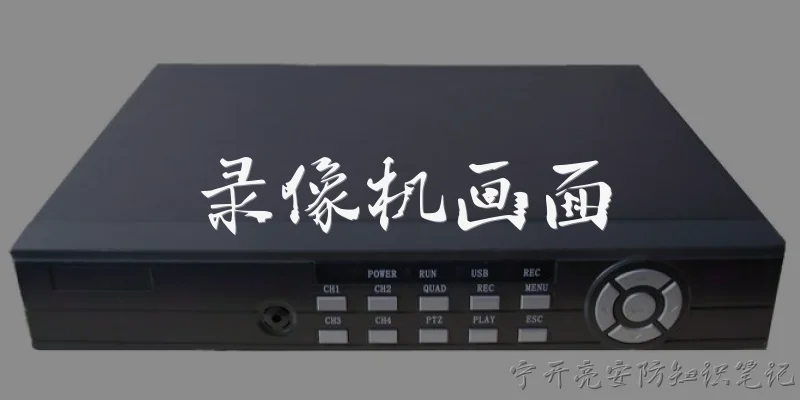
Dahua DVR 4:What are the key features of a Dahua DVR 4-channel system?
Q: What are the key features of a Dahua DVR 4-channel system?
A: A Dahua DVR 4-channel system is designed for small-scale surveillance setups, supporting up to four analog cameras. Key features include H.265+ video compression, which reduces bandwidth and storage needs without sacrificing image quality. It typically offers 1080p or 5MP lite recording resolution, ensuring clear footage. Many models come with AI-powered detection, such as motion detection, human and vehicle classification, and perimeter protection, reducing false alarms. Smart playback allows you to quickly search for events by type. The DVR also supports remote viewing via the DMSS mobile app or web browser, enabling real-time monitoring from anywhere. Additionally, it often includes a built-in SATA port for up to 10TB of storage, HDMI and VGA outputs for display, and PoC (Power over Coax) on select models to simplify installation. Overall, the Dahua 4-channel DVR balances affordability with advanced features, making it ideal for home or small business use.
Q: How do I set up remote viewing on a Dahua 4-channel DVR?
A: Setting up remote viewing on a Dahua 4-channel DVR involves a few straightforward steps. First, connect the DVR to your router via Ethernet and ensure it has a stable internet connection. Access the DVR’s main menu, go to Network Settings, and enable DHCP so it obtains an IP address automatically. Next, create a P2P account by scanning the QR code on the DVR’s interface using the DMSS mobile app. This eliminates the need for complex port forwarding. Alternatively, you can set up manual port forwarding if you prefer. Once the DVR is online, open the DMSS app on your smartphone, tap “Add Device,” and scan the QR code. The app will automatically detect the DVR. You can then log in with your DVR’s username and password. For web access, use the DVR’s IP address in a browser and install the required plugin. Make sure the DVR’s firmware is up to date for optimal performance. With remote viewing, you can monitor live feeds, playback recordings, and receive alerts from anywhere.
Q: What storage options are available for a Dahua 4-channel DVR?
A: A Dahua 4-channel DVR typically supports one internal SATA hard drive, allowing you to install a surveillance-grade HDD up to 10TB. This provides ample storage for continuous recording, depending on resolution and frame rate. For example, at 1080p with H.265 compression, a 1TB drive can store roughly 10-15 days of continuous footage. The DVR also supports external storage via USB ports, enabling backup to USB flash drives or external hard drives. Some models offer cloud storage through Dahua’s cloud service, which requires a subscription and provides off-site backup for critical events. Additionally, network storage (NAS) can be configured if the DVR supports it, allowing recordings to be saved to a network-attached storage device. To maximize storage efficiency, enable motion detection or scheduled recording to avoid filling the drive with unnecessary footage. Always use surveillance-grade drives designed for 24/7 operation to ensure reliability and longevity.
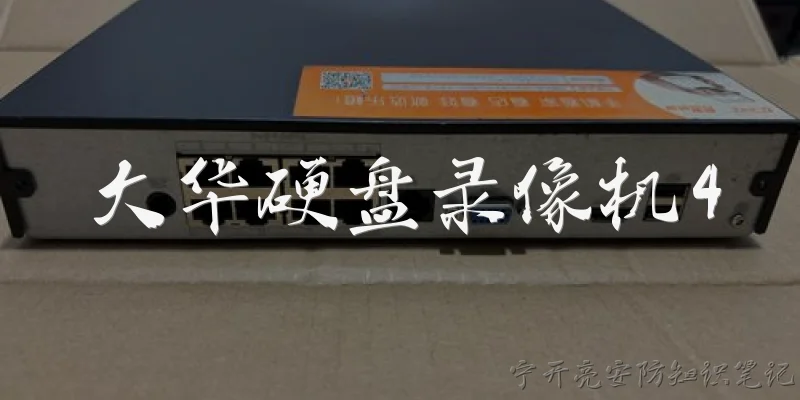
Dialogue about
Common scenarios of "Dahua DVR 4"
【Customer】 Hi, I'm having trouble with my Dahua DVR 4. It keeps beeping and the screen says 'No HDD'. What should I do?
【Support】 Hello! I'm sorry to hear about the issue. The 'No HDD' message usually means the hard drive isn't detected. Have you checked if the HDD is properly connected inside the DVR?
【Customer】 I haven't opened it yet. Is it safe to do so?
【Support】 Yes, but first power off the DVR and unplug it from the power source. Then open the case and check the SATA and power cables connected to the hard drive. Make sure they are secure.
【Customer】 Okay, I'll do that. What if the cables are fine but it still says 'No HDD'?
【Support】 If the cables are secure, the hard drive might be faulty or incompatible. Do you know the model and capacity of the HDD?
【Customer】 It's a Seagate 1TB, I think it's a surveillance drive. I bought it with the DVR about a year ago.
【Support】 That should be compatible. Try connecting the HDD to a PC to see if it's recognized. If not, the drive may have failed. Also, check if the DVR's firmware is up to date.
【Customer】 How do I update the firmware?
【Support】 You can download the latest firmware from Dahua's official website. Put it on a USB drive, then go to the DVR's menu, find 'Upgrade' and follow the prompts. Make sure not to power off during the update.
【Customer】 Alright, I'll try that. But what if the HDD is dead? Can I just buy any new hard drive?
【Support】 You should use a surveillance-grade HDD like Western Digital Purple or Seagate SkyHawk. Regular desktop drives may not handle continuous recording well.
【Customer】 Got it. Also, the DVR beeps constantly. Can I disable the beep?
【Support】 Yes, you can turn off the buzzer in the DVR's settings. Go to Main Menu > Settings > System > Buzzer, and disable it. But keep in mind the beep is a warning for the HDD issue.
【Customer】 Thanks. I'll check the HDD first. If I need to replace it, how do I initialize it in the DVR?
【Support】 After installing the new HDD, go to Main Menu > HDD Manage, select the new drive, and click 'Format' or 'Initialize'. The DVR will prepare it for recording.
【Customer】 Okay, I'll try these steps. One more thing: the DVR sometimes reboots randomly. Could that be related?
【Support】 Yes, a faulty HDD or power supply can cause random reboots. Check the power adapter as well. If the reboots persist after fixing the HDD, consider testing with a different power supply.
【Customer】 I appreciate the help. I'll start by checking the HDD connections and then go from there.
【Support】 You're welcome! If you run into any issues, feel free to contact us again. Good luck!