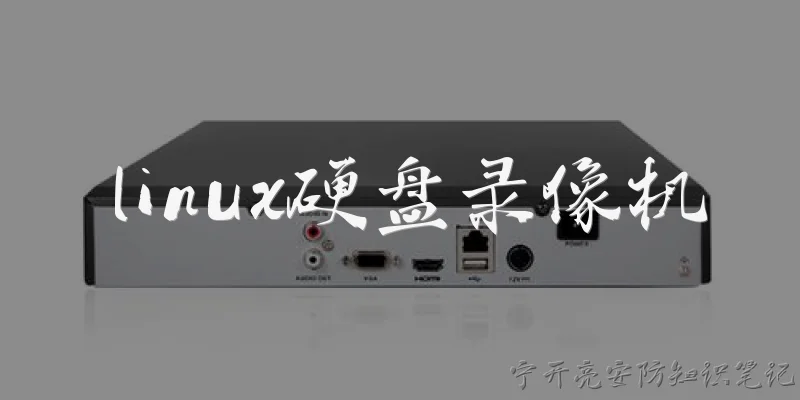
DVR connect hard drive:How do I connect an external hard drive to my DVR?
Q: How do I connect an external hard drive to my DVR?
A: To connect an external hard drive to your DVR, first ensure the DVR is powered off. Locate the USB or eSATA port on the back of the DVR. Plug the hard drive's data cable into the appropriate port. If the drive requires external power, plug it into a wall outlet. Turn on the DVR and wait for it to recognize the drive. Most DVRs will prompt you to format the drive for recording. Follow the on-screen instructions to complete the formatting process. Once formatted, the DVR should detect the drive automatically, and you can set it as the default recording storage in the DVR's settings menu.
Q: What type of hard drive is compatible with a DVR?
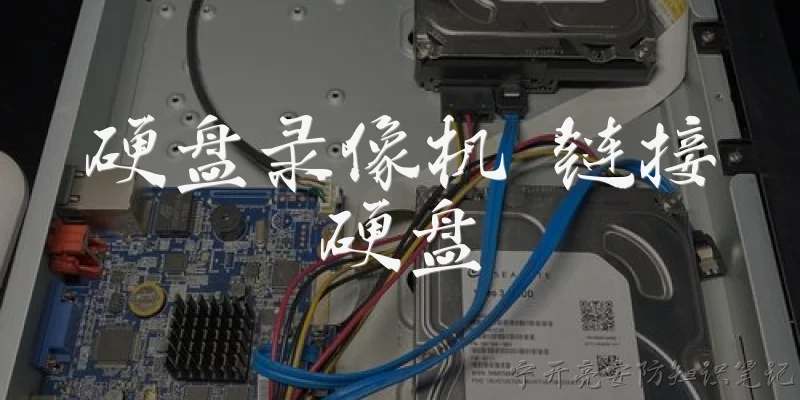
A: Most DVRs are compatible with external USB hard drives or internal SATA drives, depending on the model. For external drives, look for ones that are specifically designed for surveillance or continuous operation, as they handle 24/7 recording better. Capacity typically ranges from 500GB to 8TB or more. Check your DVR's manual for maximum supported capacity and interface type (USB 2.0/3.0 or eSATA). Some DVRs require drives with external power supplies, while others can power portable drives via USB. It's also important to use a drive that can be dedicated solely to the DVR, as formatting will erase all existing data.
Q: Why is my DVR not recognizing the connected hard drive?
A: If your DVR isn't recognizing the connected hard drive, several issues could be at play. First, check that the drive is properly connected and powered on. Try a different USB port or cable. Ensure the drive is formatted in a compatible file system, such as FAT32 or the DVR's proprietary format. Some DVRs only support specific brands or capacities. If the drive was previously used with a computer, it may need to be reformatted by the DVR. Also, check the DVR's settings to see if the drive is enabled. If none of these work, the drive may be incompatible or faulty. Consult your DVR's manual or support for further troubleshooting.
Q: How do I format a hard drive for use with a DVR?
A: Formatting a hard drive for a DVR is typically done through the DVR's menu system. First, connect the drive to the DVR and power it on. Access the DVR's main menu using the remote or mouse. Navigate to the storage or hard drive management section. Select the connected drive and choose the format option. Confirm the action, keeping in mind that formatting will erase all data on the drive. The DVR will then format the drive to its required file system, which may take a few minutes. Once complete, the drive should be ready for recording. If the DVR doesn't offer a format option, you may need to format it on a computer using the recommended file system.
Q: Can I use any external hard drive with my DVR for recording?
A: Not all external hard drives are compatible with every DVR. While many DVRs support standard USB hard drives, there are limitations. Some DVRs require drives with external power, while others support bus-powered drives. Capacity limits vary; older DVRs may only support up to 2TB, while newer ones can handle 8TB or more. Additionally, some DVR manufacturers recommend specific brands or models for optimal performance. Drives designed for surveillance (like WD Purple or Seagate SkyHawk) are ideal because they handle continuous writing. Using an incompatible drive may result in recognition issues or recording failures. Always check your DVR's specifications before purchasing a drive.
Words of experience
Common scenarios of "DVR connect hard drive"
【Customer】 Hi, I need help connecting an external hard drive to my DVR. Can you guide me?
【Support Agent】 Hello! I'd be happy to help. First, what's the make and model of your DVR?
【Customer】 It's a Comcast Xfinity X1 DVR.
【Support Agent】 Great. Does your external hard drive have its own power supply, or is it powered by USB?
【Customer】 It's a USB-powered portable drive.
【Support Agent】 I see. The X1 DVR typically requires an external drive with its own power source. USB-powered drives may not work reliably.
【Customer】 Oh, I didn't know that. Is there any way to make it work?
【Support Agent】 Unfortunately, no. The DVR needs a powered drive to ensure stable recording and playback. You might need to get a powered external hard drive.
【Customer】 Okay, what are the requirements for a compatible drive?
【Support Agent】 It should be at least 500GB, USB 2.0 or 3.0, and have its own power adapter. Also, it will be reformatted by the DVR, so back up any data first.
【Customer】 Got it. How do I connect it once I have the right drive?
【Support Agent】 First, make sure the DVR is powered on. Then connect the drive's power adapter and plug the USB cable into the DVR's USB port.
【Customer】 Which USB port should I use? There are a couple on the back.
【Support Agent】 Any USB port on the DVR should work, but it's best to use the one labeled 'USB' or 'External Storage' if available.
【Customer】 Okay, I've connected it. What happens next?
【Support Agent】 The DVR should detect the drive and prompt you to format it. Follow the on-screen instructions to format the drive for DVR use.
【Customer】 It's asking me to format. Will that erase everything on the drive?
【Support Agent】 Yes, formatting will erase all data on the drive. Make sure you've backed up anything important before proceeding.
【Customer】 I've backed up. Should I proceed with the format?
【Support Agent】 Yes, go ahead. Once formatted, the DVR will use the external drive for additional storage. You can then record and store more shows.